03 · Teach it how you work
Give feedback to your Copilot colleague. Then keep giving it.
Four layers of memory: how Copilot answers you everywhere, how it works in Excel, what travels with a workbook, and skills you call by name.
This is the page I promised on Friday. If you keep correcting the same thing ("use a formula, not a pasted value", "dates like this", "don't touch the raw data sheet"), that correction belongs in a setting, not in every prompt. The trick is to put each preference in the right layer. A rule saved in one place is not inherited by the others.
The map
Four layers, four places.
| Layer | Where it lives | Scope | Use it for |
|---|---|---|---|
| 1 · Customise Copilot | Copilot Chat → … → Settings → Personalisation → Customise Copilot → Manage | You, in every Copilot surface | How you want answers: lead with the result, complete the work, show evidence. |
| 2 · Excel Personalization | Copilot pane in Excel → … → Personalization | You, in Excel only, every workbook, every device | Formats, formula habits, chart defaults, level of detail. |
| 3 · Workbook rules | A visible worksheet named .Rules inside the file | Everyone who opens that workbook | Report columns, period and currency conventions, which data takes precedence. |
| 4 · Skills | Built in, or a SKILL.md file in your OneDrive skills folder | You, when you @mention them | A repeatable job: "the monthly claims report", "clean this export". |
Layer 1
Customise Copilot: how it talks to you, everywhere.
In the Microsoft 365 Copilot app, open the three dots in the top-right corner, then Settings → Personalisation. Three controls matter here. Customise Copilot holds your standing instructions. Saved memories is where Copilot keeps facts you have told it; inspect and correct them now and then. Chat history & work insights is the toggle I showed you on Friday: keep it on so your colleague learns, and use Work IQ off or a temporary chat when you want a clean room.
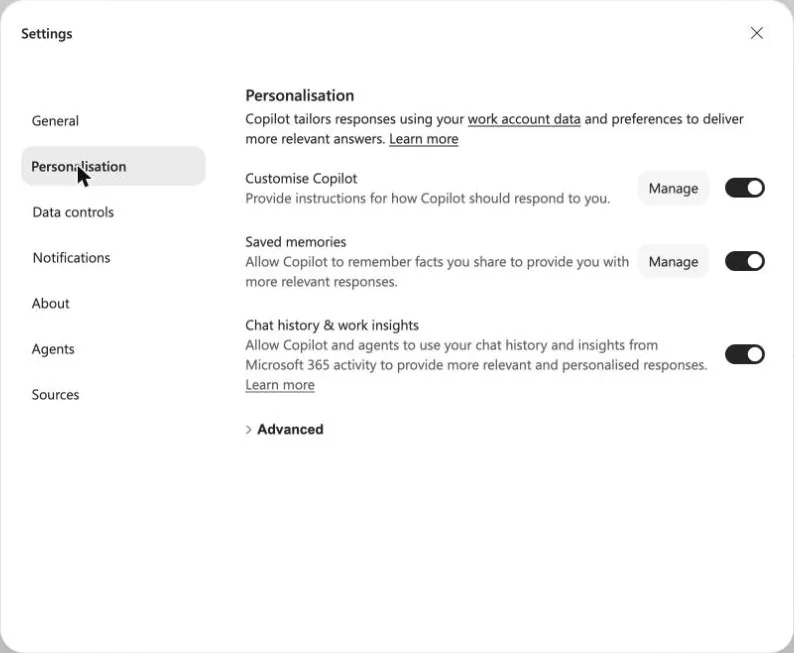
Open Manage under Customise Copilot and start with three lines. These are the ones from the Copilot Goodie Bag I sent Oskar before Friday; they fix the three corrections I was making most often.
Three standing instructions to begin with
Lead with the answer or finished result. Keep the first response concise; expand when the task needs it or I ask.

When I ask you to create or change something, complete the requested work directly using the capabilities available here. Stay within the scope of my request. If you cannot complete it, provide the usable result and name the remaining step.

Report what you actually created or changed and where I can inspect it. Distinguish proposed content from completed actions. Do not claim completion without evidence.
Then test a familiar task in a new, ordinary chat. Keep the instruction if the result improves. These are preferences, not guarantees; if Copilot ignores one, reword it or restate it in the prompt.
Layer 2
Excel Personalization: how it works in the grid.
Inside Excel, the Copilot pane has its own settings menu: the three dots in the top-right corner of the pane. Choose Personalization. A dialog called Customize Copilot opens with one text box. Whatever you save here follows your account into every workbook and every device, applies from your next prompt, and is never stored in the file.
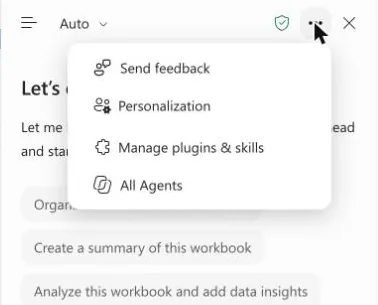
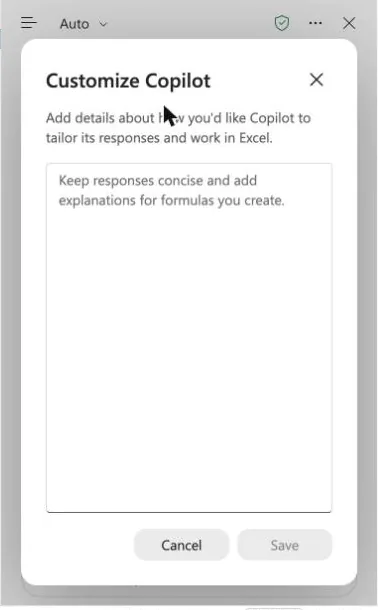
Microsoft lists eight areas you can set preferences for: number and currency formatting, date and unit conventions, table style and layout, formula preferences, charts and PivotTables, conditional formatting, level of detail, and tone and wording. Short lines work better than paragraphs. Here is the set I would start a reporting manager with; edit the currency and date lines to your own habits.
Excel personalization for someone who builds reports
Use formulas for calculated results so they update when inputs change. Prefer structured references in tables and XLOOKUP over VLOOKUP.
Never overwrite my source data. Put calculations and reports on new sheets and name them for what they contain.
Keep the source currency and unit, label them in the header, and distinguish an empty cell from zero. Do not invent values.
Dates as YYYY-MM-DD. Round to whole numbers unless the data has decimals or I ask for them.
New tables: bold header row, banded rows, totals at the bottom.
Charts: one message per chart, a title that says what the chart shows, clustered column as default.
Give me a two-line summary before any detailed table.
After edits, list the sheets and ranges you changed.
Check it by changing an input: the result should recalculate. Open the formulas Copilot wrote. If a result ignores a preference, say so in the prompt and consider rewording the saved line.
Layer 3
Workbook rules: conventions that travel with the file.
This is the one I ran out of time for. Personalization is yours; workbook rules belong to the workbook. Anyone who opens the file gets them, without any set-up on their side. They live in a plain, visible worksheet named .Rules, one rule per cell in column A. Hidden rules sheets are ignored.
To create one, open the plus sign in the pane's prompt box and choose Create workbook rules. Copilot adds the .Rules sheet with a template of examples. Once the sheet exists, the same menu says Go to workbook rules. You can also just add a sheet called .Rules yourself, copy one from another workbook, or ask Copilot to add a rule for you.
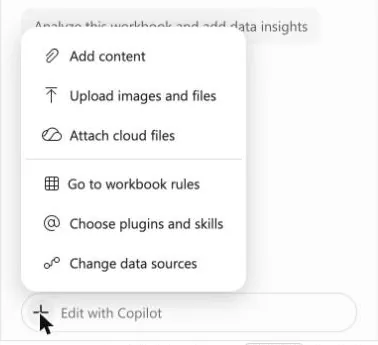
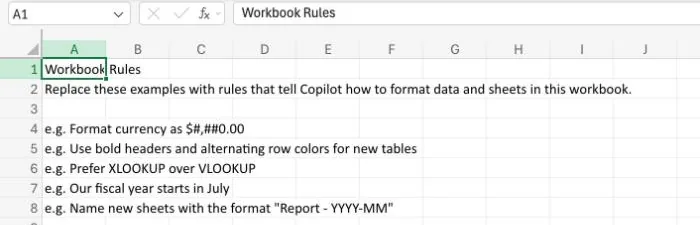
Replace the template with your own rules. Short examples of the result you want beat long descriptions. Use heading cells such as ## REPORTS to group them. Three sets to copy, one per cell:
Rules for a claims and support workbook (the shape of my Friday demo)
## DATA
The Claims, Support cases and Warranty sheets are source data. Never edit them. Write analysis to new sheets.
A record that appears in both Support cases and Claims is the same case; the Claims row decides its status.
Treat "See work order for details" and empty descriptions as missing, not as a failure mode.

## REPORTS
Failure-mode reports use these columns: Failure mode, Product family, Cases, Share of cases, Trend vs previous period, Owner.
Show the reporting period and the data cut-off date in every report heading.
Group by product family first, then by region. Regions follow the Account Subsidiary column.

## FORMAT
Counts as whole numbers. Shares as percentages with one decimal.
Flag any product family with more than 20 claims in the period in red text.
Rules for a monthly variance report
## VARIANCE
For variance reports, use these columns: Metric, Actual, Plan, Variance, Variance %, Explanation, Owner.
Variance = Actual minus Plan. A negative variance on a cost line is favourable; say so in the Explanation column.
Show the reporting period and currency in each report heading. Keep the source currency; do not convert.
Treat an absent value as missing, not zero. Do not invent actuals or plans.
Highlight any Variance % beyond plus or minus 10 percent.
House conventions for any workbook
## CONVENTIONS
Prefer XLOOKUP over VLOOKUP, and structured table references over cell ranges.
No merged cells. One header row. One value per cell.
Dates as YYYY-MM-DD. Our fiscal year equals the calendar year.
Name new sheets with the format "Report - YYYY-MM".
When you add a formula, add a short note in the cell comment explaining what it does.
Rules can even be dynamic. Microsoft's own example puts a dropdown in cell B1 of the .Rules sheet and writes =IF(B1="Executive","Show KPI summary only","Include full drill-down tables"), so the audience selector changes how Copilot reports. Try it once; it is a neat way to keep one workbook for two readers.
Honest limits: rules are guidance, not validation. They are only fully supported in English, and behaviour can differ between models and over time. Test with a working copy, as a colleague would see it, and inspect the actual output.
Layer 4
Skills: the repeatable job you call by name.
A skill is a set of instructions Copilot follows for a recurring task. You call one by typing an @mention in your prompt, or through the plus sign → Choose plugins and skills. Microsoft ships a few: @clean-data finds and fixes extra spaces, inconsistent formats, duplicates and wrong data types and lets you choose which fixes to apply; @chart-design creates or improves charts; @theme-design and @brandkit handle look and brand; @skill-builder turns a workflow you just did into a new skill. There is also a folder of twenty finance skills, from three-statement models to variance monitoring.
Which ones you see depends on rollout. In my account the dialog shows Custom skills, Finance and Visualization; yours may show more or fewer.
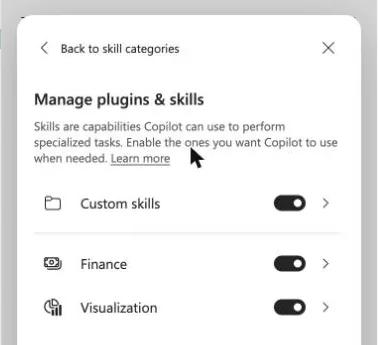
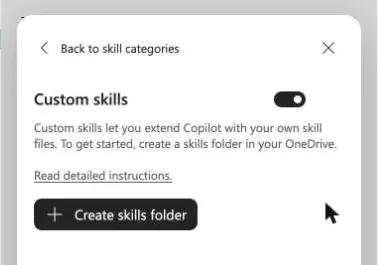
The easiest way to make your own: do the job once with Copilot, then say
Turn a finished workflow into a skill
@skill-builder Save what we just did to a new skill called monthly-claims-report. Include the sheet names, the columns of the report, the chart and the checks you ran before finishing.
The manual way, if skill-builder has not reached your account yet: in the pane, three dots → Manage plugins & skills → Custom skills → Create skills folder → Open skills folder. Each skill is a folder in that OneDrive location, named exactly like the skill, containing a SKILL.md file. Here is a complete one you can adapt.
SKILL.md · a monthly claims report
---
name: monthly-claims-report
description: Use when I ask for the monthly claims report, a claims summary by product family, or to refresh last month's claims analysis.
---

# Monthly claims report

1. Confirm which sheet holds the raw claims and which column holds the claim date. Do not edit that sheet.
2. Ask for the reporting month if it is not in the prompt.
3. Create or refresh a sheet named "Report - YYYY-MM" with a table: Failure mode, Product family, Cases, Share of cases, Trend vs previous month.
4. Use formulas (COUNTIFS, structured references) so the table updates if the raw data changes.
5. Add one clustered column chart: cases by product family, title "Claims by product family, YYYY-MM".
6. Check: the total of Cases must equal the number of raw claims in the month. Report the two numbers.
7. Finish with a three-line summary: biggest failure mode, biggest change vs last month, one open question.
Skills are supported only in English and need the Office display language set to English. They cannot run code outside Copilot's own tools; scripts in a skill folder are resources, not new powers. Turn a skill off in the dialog and Copilot stops using it automatically; a direct @mention still works.
Which layer wins
Keep it testable.
The prompt beats the saved preference. Rules travel with the file, preferences travel with you, skills run when called. Change one layer at a time, run the same task before and after, and write down what you changed and where. If a result goes wrong, it is far easier to find the sentence that caused it. That is also exactly the four-line share-back we use in the channel: I kept correcting, I changed, I checked, I will keep or remove it because.
And expect to come back. A preference that helped in October may be in the way by December, because your work changed, or because Copilot did. Treat this page the way you treat a good colleague: a short feedback session now and then, a line added, a line removed. Ten minutes, not an afternoon. You evolve together, and so do the settings.
Read with your AI · Markdown →
About this companion and its sources
Post-session material after Convoy #4 of the Mycronic CMT Copilot Convoy, 16 October 2026. The pages follow my Excel demonstration and the Copilot Goodie Bag prepared before the session, and expand them into self-study material. Quotations from the session come from the recording's transcript; colleagues are kept anonymous and the internal discussion is not published here.
Product descriptions are checked against Microsoft's documentation on 17 October 2026 and linked on the Sources page. Screenshots are from my own Microsoft 365 account, taken on the mock aftermarket workbook from the demo, with private items blurred. Prompts and rule sets are proposed wording to adapt, not validated Mycronic defaults. Availability of features depends on licence, rollout and admin settings.
AI + JJ · October 2026. No analytics, sign-in or data collection. The appearance preference is stored only in your browser. External links have their own services and policies.