01 · Two doors into Excel
Talk to your files, or work inside them.
Copilot Chat and Copilot in Excel are two different colleagues. On Friday I used both, in that order.
The first door is Copilot Chat, the Microsoft 365 Copilot app you already use for mail and meetings. It can read your Excel files without opening them, several at once, and it can make things Excel cannot, such as an infographic. The second door is the Copilot pane inside Excel. It sits next to your grid and can actually change the workbook: formulas, tables, charts, new sheets.
Most of the frustration I hear comes from using the wrong door. Asking Chat to rebuild a sheet, or asking the Excel pane to compare three files it cannot see. Here is how I think about it, and the exact moves from the demo.
When to use which
Two colleagues, two jobs.
| You want to… | Door 1 · Copilot Chat | Door 2 · Copilot in Excel |
|---|---|---|
| Understand what is in a file, fast | Yes. Reference the file with a slash and ask. | Yes, in Chat only mode. |
| Compare or combine several workbooks | Yes. Add two, three, five files to the same chat. | Partly. It can import data from other workbooks saved on OneDrive or SharePoint, but you work one workbook at a time. |
| Change the workbook: formulas, tables, charts, sheets | No. It gives you text and tables in chat. | Yes, this is the whole point of Allow editing and Plan. |
| Make a visual that is not an Excel chart | Yes. Ask for an infographic or an image. | No. Charts, PivotTables and shapes only. |
| Reuse the same analysis on next month's file | Save the prompt; keep the chat in your history. | Save a skill, or put the conventions in a .Rules sheet. |
| Keep company conventions attached to the file | No. | Yes, with a visible .Rules worksheet. |
| Deep statistics across many files, with the code visible | Use the Analyst agent, see "Over the hill" below. | Ask Copilot to use Python in Allow editing mode, where available. |
Door 1
Copilot Chat: the moves from Friday.
Open the Microsoft 365 Copilot app. Make sure Work IQ is on in the top-left corner; that is what lets Copilot see your files. Then follow the five steps I did on Friday. I used three mock aftermarket files; you should use your own. Two or three workbooks that belong together, from your own work, where you know what a sensible answer looks like. If you would rather rehearse on neutral data first, download my three demo files, save them to your OneDrive and run the same five steps. Then do it again with your own.
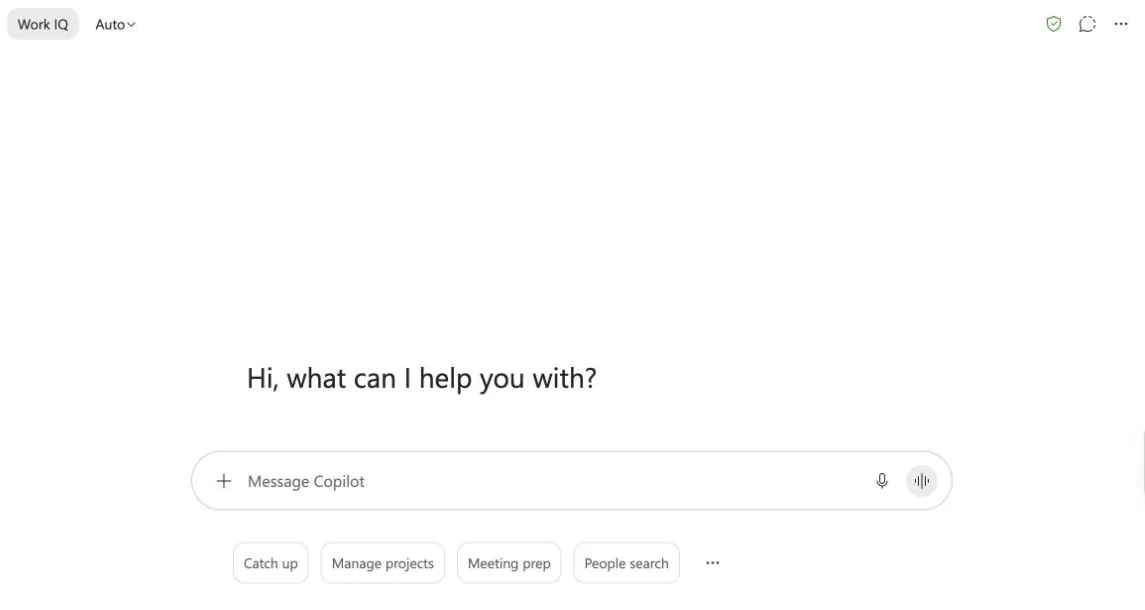
Get your files into the chat. Three ways.
The slash. In the prompt box, type / and start typing part of the file name. A picker opens with tabs for People, Files, Meetings, Emails and more. Pick the file, repeat for the next one. On Friday one of you asked whether the zeros in my file names were a command. They were not, just my file names; the slash is the command.
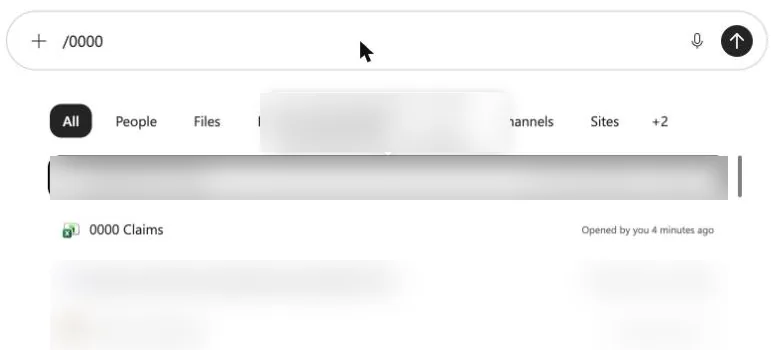
Typing /0000 finds my mock "0000 Claims" workbook. Other results and a tooltip are blurred because they are my own mail. The plus sign. Click + at the left end of the prompt box and browse: upload from your computer, attach cloud files from OneDrive, SharePoint or a Teams meeting, or add other work content. Same result, more clicking, no need to remember a file name.
Or just ask. Copilot can find the files itself. This is what I typed the morning after the session:
Let Copilot find the filesFind the three Excel files that begin with 0000 and let me know what I can learn from them.
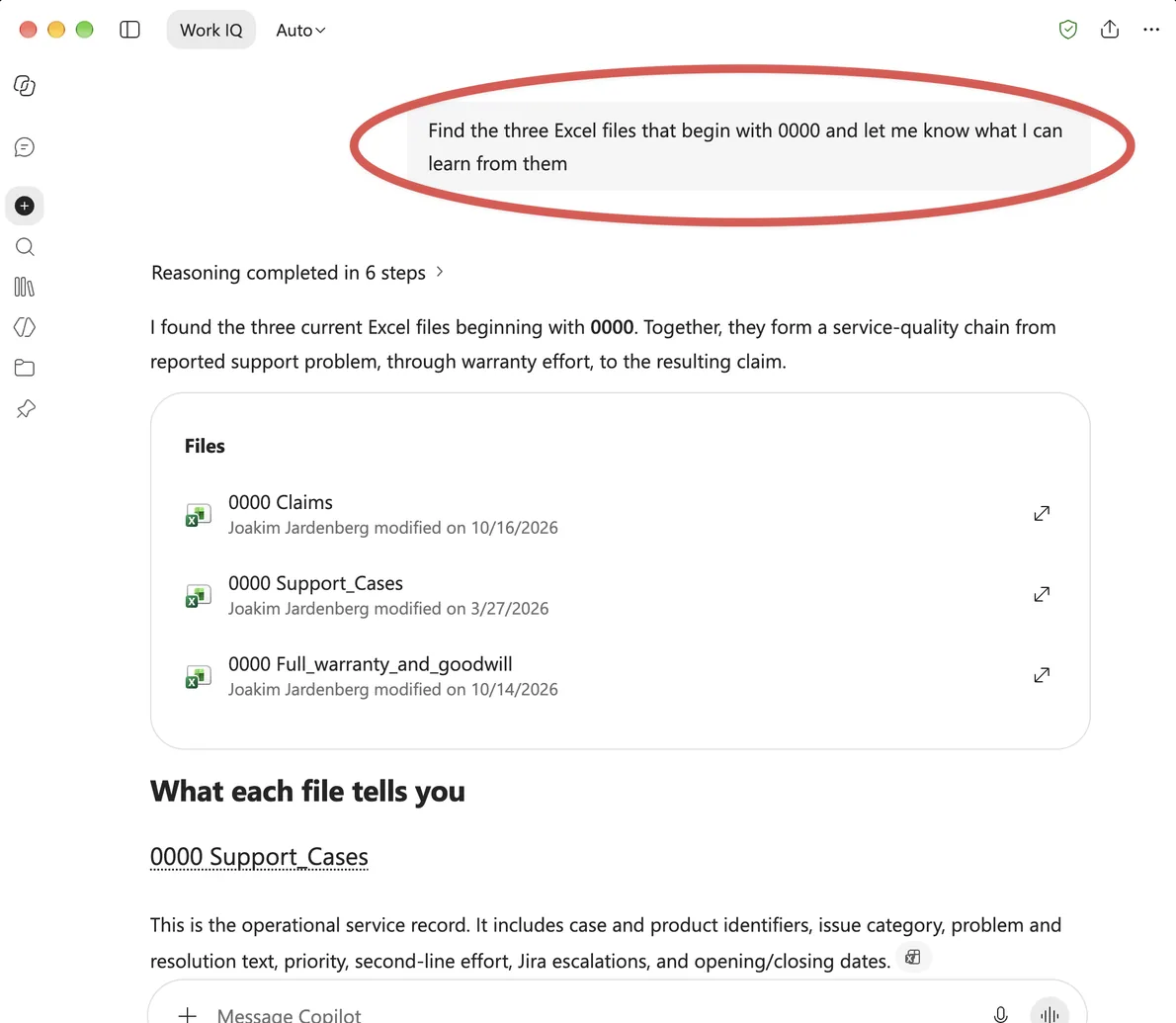
No slash, no picker. Copilot found all three mock files, listed them with their dates, and started explaining what each one tells me. Screenshot from my own account, 17 October 2026. And if you do not know exactly which files you need, say so. "Find whatever we have on warranty claims for the last two quarters" is a perfectly good opening. Let Copilot figure out the files; you judge whether it found the right ones.
Ask a lazy question.
Friday's opening promptWhat are examples of insights that I could get from these three files?
That is more or less what I typed. Copilot read the files and suggested where to dig. You do not need to design the perfect prompt before you know what the data can tell you.
Follow the suggestion, stay in the same chat.
Second moveList the most common failure modes, and show how they trend by product family.
I did not have to point at the files again. As long as you stay in the same conversation, everything you added is still there. Copilot answered with a table and offered the next step.
Check one number you already know.
My table said 145 claims for a product family. I knew that number, so I knew Copilot had read the right data. Always find one such anchor before you trust the rest. If you do not know a number, ask Copilot which rows it used and open them.
Make something Excel cannot.
Third move, deliberately roughGreat. Create an infographic that clearly lays out these failure modes and gives me a visual representation of the analysis you just did.
I called it a horrible prompt on Friday and it still worked. The result is a starting point for your own thinking, not a customer-ready graphic. Save the better ones; they expand how you think about your data.
Which brings me to the microphone in the prompt box. Try talking to Copilot instead of typing. You will feel like you are rambling, and that is fine. Every sentence, every half-finished thought gives Copilot more context to work with, and the result is usually better than the three tidy words you would have typed. More importantly, you start to figure out not just how to operate this thing but how to work with it, the way you learn to work with a new colleague. This is how coexistence begins.
Three ways to break free from your history
Copilot Chat remembers your chats and learns from your work. Usually that is what you want. When it is not: turn Work IQ off for a question that should not use company data; start a temporary chat from the icon in the top-right corner, which ignores your history and custom instructions but still runs inside the Mycronic tenant; or simply begin your prompt with "Disregard previous conversations and everything you know about me". The full personalization settings are on the next page.


Door 2
Copilot in Excel: the colleague who can touch the grid.
Open any workbook and look at the lower-right corner of the Excel window. That round Copilot button opens a pane next to your sheet. The same prompts work here, but now Copilot can act: add a column with a formula, build a PivotTable, create a chart, make a new sheet, apply conditional formatting. In Allow editing mode it does so directly; in Plan mode it shows the steps first and waits for you; in Chat only mode it answers without touching anything.
If you want to be safe while you learn, start in Chat only. Once you trust it with a workbook, Allow editing is where the real time saving is. Everything it changes can be undone, and the file keeps its version history.
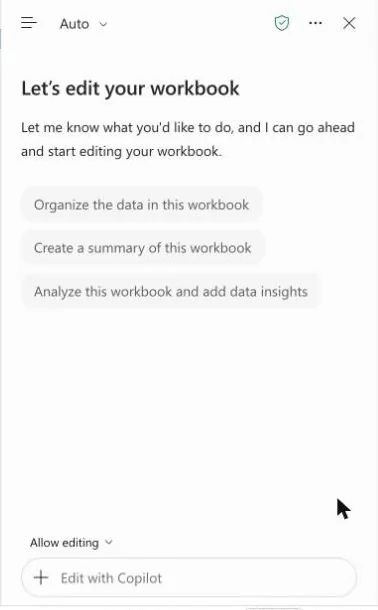
The set-up details (licence, the one calculation setting that blocks editing, AutoSave, undo) are on Set it up. Every control in this pane is described on Every button, explained.
Over the hill
Four more doors, on the other side of the learning curve.
Think of this as a hill. On this side, where most of us are, the groundwork is Copilot Chat with a few files and the Copilot pane in a workbook, used in fairly simple ways. The climb is real: new vocabulary, settings in three places, a tool that changes monthly. The four doors below are on the other side of that hill. You do not need them this week, but you will hear about them, so here is the map, checked against Microsoft's documentation on 17 October 2026. Availability in the Mycronic tenant depends on licences and admin settings.
Analyst, the data agent in Copilot Chat.
Under Agents in the left navigation. It is built for exactly the thing I did on Friday, but deeper: attach several files, ask a question, and it runs Python step by step, shows the code it is running and returns a report with charts. When a question needs real statistics across files, start here rather than in plain chat.
Cowork, the colleague who does tasks.
The Cowork tab next to Chat. It can create and edit Excel files in OneDrive or SharePoint, run on a schedule, and ask you before anything sensitive. My advice from Friday stands: for your own work, stay in Chat or Cowork. Keep agents for the things you want to distribute to others, and expect them to be messy for a while.
Excel Agent, the workbook maker.
Also in Copilot Chat, for creating a new workbook from a description and your sources. It needs a paid Microsoft 365 Copilot licence and the Anthropic models enabled by your admin. The result opens read-only in chat; detailed edits happen in Excel.
Python inside the Excel pane.
Since spring, Copilot in Excel can use Python while it edits, for heavier transformations and visuals. Ask for it explicitly: "use Python for this analysis". If nothing happens, your tenant or client build does not have it yet.
Two things that are gone, so you do not go looking: the COPILOT() worksheet function was retired on 14 September 2026 (old cells show a cached value and recalculate to #NAME?), and the old "App Skills" advanced-analysis mode was removed in February 2026. Everything they did now lives in the pane, in Analyst, or in Cowork.
Around the corner
What I meant to show you in the last four minutes.
The plan for Friday had a short segment after Excel: the same reporting question, answered in Claude instead. We never got there, so here is the argument in words. Everything in this section is about where the tools are heading, not what you should use for Mycronic work today; your approved tools are the ones on the rest of this site.
Here is what I find interesting. When I give a reporting job to Claude, I do not work in Excel with an assistant bolted on. I describe the job, hand over the files, and the work happens in a space built for that conversation. There is not a single menu item that is irrelevant to me. No ribbon, no forty functions I will never use, nothing to hunt for. The tool is tailored to exactly what I am doing and what I want next, and when I need a spreadsheet at the end, I get one.
The other half is what comes out. Instead of a chart on a sheet, I can ask for a dashboard I can click through, an explainer that walks a reader through the numbers, even a short film that tells the story of the quarter. Interactive, creative ways to show data that go well beyond what Excel can do today, and, I would argue, beyond Power BI. The report stops being a file you send and becomes something the receiver can explore.
Why does this matter to you, inside a Microsoft environment? Because, as I read it, this is where the features come from. Cowork, which several of you have already used, showed up in Microsoft 365 not long after Claude introduced the idea. Skills defined in a SKILL.md file, the model picker with Claude in it, the Excel Agent running on Anthropic models: the pattern is hard to miss. Keeping half an eye on what Claude can do is a decent forecast of what your Copilot will do in a few months.
So that is around the corner: less working inside the spreadsheet, more describing the outcome you want; and reports that people can explore rather than open. When we have a few minutes in a coming convoy, I will show the same claims data answered this way. Until then, the two doors on this page are plenty.
Read with your AI · Markdown →
About this companion and its sources
Post-session material after Convoy #4 of the Mycronic CMT Copilot Convoy, 16 October 2026. The pages follow my Excel demonstration and the Copilot Goodie Bag prepared before the session, and expand them into self-study material. Quotations from the session come from the recording's transcript; colleagues are kept anonymous and the internal discussion is not published here.
Product descriptions are checked against Microsoft's documentation on 17 October 2026 and linked on the Sources page. Screenshots are from my own Microsoft 365 account, taken on the mock aftermarket workbook from the demo, with private items blurred. Prompts and rule sets are proposed wording to adapt, not validated Mycronic defaults. Availability of features depends on licence, rollout and admin settings.
AI + JJ · October 2026. No analytics, sign-in or data collection. The appearance preference is stored only in your browser. External links have their own services and policies.