02 · Set it up
Ten minutes of settings. Then a short review now and then.
Where Copilot lives in Excel, the three modes, and the quiet setting that stops editing from working.
Nothing here is difficult, but several of these details cost people an hour of confusion the first time. I have checked each one against Microsoft's current documentation on 17 October 2026 and against my own account. Where Mycronic's tenant may differ, I say so.
One expectation to set before we start. These settings are not a one-off. Options come and go, Microsoft adds a mode here and retires a function there, and your own preferences will change as you learn what you actually want from this colleague. That is exactly how it works with a human colleague: you do not brief them once and walk away, you have a short performance review now and then and adjust. Ten minutes today, then ten minutes whenever you notice you are correcting the same thing again. Not hours every week. You evolve together, and so do the settings.
Step 1
Do you have it?
Open any workbook in Excel and look at the lower-right corner of the window. If you see the round Copilot button, you are set. Microsoft now treats Copilot in Excel as part of Copilot Chat, so it works with a commercial Microsoft 365 Copilot licence and, with fewer capabilities, on Copilot Chat-eligible business subscriptions. In the Copilot app your licence shows as "M365 Copilot (Premium)" or "(Basic)" under your name.
If the button is missing, it is an admin or licence question, not a skill question. Note the app, the account and the exact missing control, and take it to IT. An instruction cannot grant a capability the account lacks.
Step 2
Open the pane, and switch mode on purpose.
Click the Copilot button in the lower-right corner, or press Alt+C to jump to it with the keyboard. The pane opens on the right. Above the prompt box sits the mode selector. The default is Allow editing.
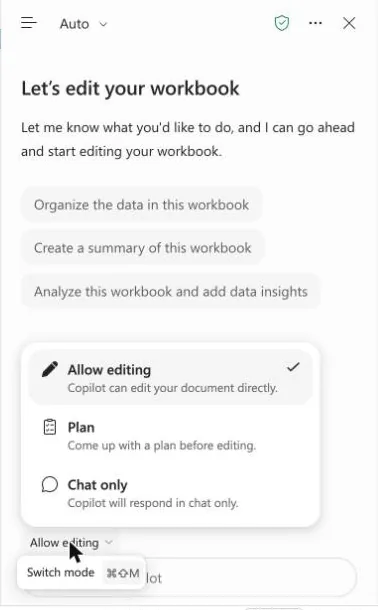
| Mode | What Copilot does | When I use it |
|---|---|---|
| Allow editing (default) | Changes the workbook directly. Handles multi-step jobs: reshaping data, merging sheets, building a report with several elements. You can watch the reasoning and press Stop. | Working copies, files I own, repetitive clean-ups. |
| Plan | Writes out which ranges, sheets and formulas it intends to touch, asks clarifying questions, and waits for you to press Proceed. | Shared files, anything with formulas other people depend on. |
| Chat only | Reads and answers. Nothing in the grid changes. | Understanding a file I did not build, and the first ten minutes with any new data. |
Windows, Mac and the web support all three modes. iPad has Chat and Plan, iPhone has Chat, Android has Chat; editing is rolling out to the mobile apps. What Microsoft launched last year under the name "Agent Mode" now simply lives behind Allow editing.
Step 3
The setting that quietly blocks editing.
Copilot can only edit when Excel's Calculation Options are set to Automatic. If a workbook has been set to Manual (finance models often are), Copilot's edits will not behave. Check Formulas → Calculation Options → Automatic before you blame the prompt.
Two more file states to know. "Unsupported file state" usually means the file is checked out in SharePoint (check it in, close and reopen, or use Excel for the web) or saved in a format Copilot does not support, such as Strict Open XML; save it as .xlsx. If your organisation requires check-out for editing, the desktop apps cannot use Copilot on those files but Excel for the web still can.
Step 4
Make it safe to experiment.
Cloud or local, AutoSave on or off, your choice.
Copilot no longer requires an Excel file to be in the cloud; a workbook on your own disk works too. AutoSave still does require OneDrive or SharePoint, and Copilot works with AutoSave on or off. Turning it off is a legitimate way to try edits without saving them. When it is on, everything Copilot changes is saved and visible to anyone with access, including co-authors.
Undo is one click away.
After an edit, the pane shows Done and Undo. Ctrl+Z in the grid works too. For anything bigger, use the file's version history (File → Info → Version History) and go back to the version before Copilot.
See what Copilot changed.
Since spring 2026, edits made by Copilot are attributed to Copilot in the Show Changes pane (Review tab), next to your colleagues' edits. You can also just ask the pane: "what did you change, and where?"
Work on a copy when the file matters.
My habit: Save a copy, name it with today's date, let Copilot loose, keep what works. Then bring the good formula back into the real file by hand or with Plan mode.
Step 5
Models, history and language.
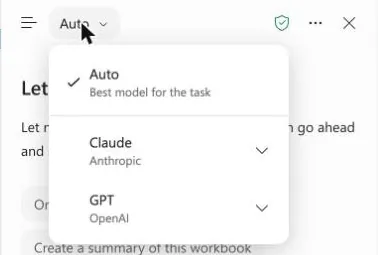
Leave the model on Auto.
The picker in the top-right of the pane offers Auto, Claude (Anthropic) and GPT (OpenAI). Auto chooses for you and is the right default; I told you on Friday to forget about it, and I stand by that until you have a specific reason. Your choice only lasts for the current session. Whether Claude appears at all depends on your admin having enabled Anthropic models.
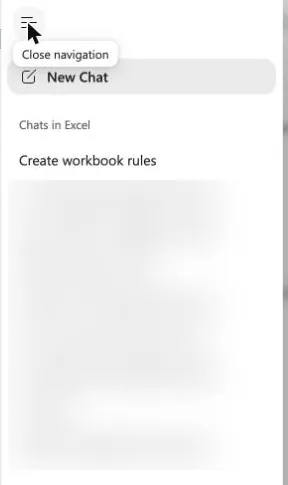
Your previous chats are behind the menu icon, top left.
They are listed by recency. This is where you go to reuse a prompt that worked on last month's file. Individual chats cannot be deleted yet; the whole Copilot activity history can be cleared from your Microsoft privacy settings.
Swedish works, English works better.
Prompts in Swedish are supported. Copilot was trained mostly on English material, so for anything precise I write the prompt in English. Workbook rules and skills are only fully supported in English, and skills require the Office display language to be English.
Done
Your set-up checklist.
- Copilot button visible in the lower-right corner of Excel.
- You know how to switch between Allow editing, Plan and Chat only.
- Calculation Options is Automatic in the workbook you are about to use.
- You have a working copy, or AutoSave off, for your first experiments.
- You know where Undo, version history and Show Changes are.
- A reminder in your calendar, four weeks out: ten minutes to review what you have changed and what still annoys you. That is your first performance review with your Copilot colleague.
- Personalization and workbook rules are next: Teach it how you work →
Read with your AI · Markdown →
About this companion and its sources
Post-session material after Convoy #4 of the Mycronic CMT Copilot Convoy, 16 October 2026. The pages follow my Excel demonstration and the Copilot Goodie Bag prepared before the session, and expand them into self-study material. Quotations from the session come from the recording's transcript; colleagues are kept anonymous and the internal discussion is not published here.
Product descriptions are checked against Microsoft's documentation on 17 October 2026 and linked on the Sources page. Screenshots are from my own Microsoft 365 account, taken on the mock aftermarket workbook from the demo, with private items blurred. Prompts and rule sets are proposed wording to adapt, not validated Mycronic defaults. Availability of features depends on licence, rollout and admin settings.
AI + JJ · October 2026. No analytics, sign-in or data collection. The appearance preference is stored only in your browser. External links have their own services and policies.